
Found a song on YouTube and want the instrumental for karaoke, a cover, or a remix? Here is how AI stem separation removes the vocals in 2026: three step-by-step methods, seven tools compared, quality expectations, and the copyright rules you cannot ignore.
You found a perfect track on YouTube, but the lead vocal is in the way. You want the instrumental for karaoke practice, a cover video, or a remix. Ten years ago, you would have tried phase-canceling the center channel and ended up with a hollow, tinny mess. In 2026, AI stem separation can remove the vocal from almost any song in under a minute, while leaving the instrumental underneath surprisingly intact.
This guide covers three real methods, from easiest to highest quality. It also compares seven tools by pricing and stem count, sets honest quality expectations, and explains the copyright and YouTube Terms of Service rules that many guides skip.
What "Removing Vocals" Actually Does
It is not simply cutting a frequency range. That is the old method that often left everything sounding hollow. Modern tools use source separation: a neural network, usually based on Meta's Demucs or a similar model, analyzes the full frequency content of the mix second by second and classifies each component as vocal, drums, bass, or other instruments. The vocal stem is then removed while the remaining stems are re-synthesized into a clean instrumental.
Two useful outputs come from this process:
- Instrumental (karaoke): everything minus the lead vocal.
- Acapella: just the isolated voice, which producers use for remixes and mashups.
On a clean studio mix, a modern instrumental can often sound 90-95% clean, with only faint vocal "ghosts" in heavily reverberated or harmonized sections. That is a major improvement over the old center-channel removal trick.
What People Use Vocal-Free Tracks For
- Home karaoke and singing practice: the most common use case.
- Cover videos and live performances: sing over the instrumental, with the appropriate license for public performance.
- Remixes and mashups: isolate the acapella to layer over new beats.
- Music education: isolate instruments to study individual parts.
- Video editing: reuse background music under new narration.
- Language learning: mute the native speaker to practice shadowing.
Method 1: Voice Isolator Online Tool (Easiest, No Install)
Best for: one-off tracks, quick karaoke files, and anyone who does not want to install software.
DeVoice Voice Isolator is particularly well suited to this method. It runs in the browser, uses AI stem separation to split vocals from instrumentals, and requires no installation. Here is the process.
Step 1: Prepare your audio file
First, get the audio from the YouTube video. If it is your own video, download the audio directly from YouTube Studio. For other content you have the rights to use, extract the audio as an MP3 or WAV file.
If the recording has background hiss, room tone, or wind noise, clean it first with DeVoice's background noise remover. Cleaner source audio gives the stem separator more to work with and can reduce artifacts.
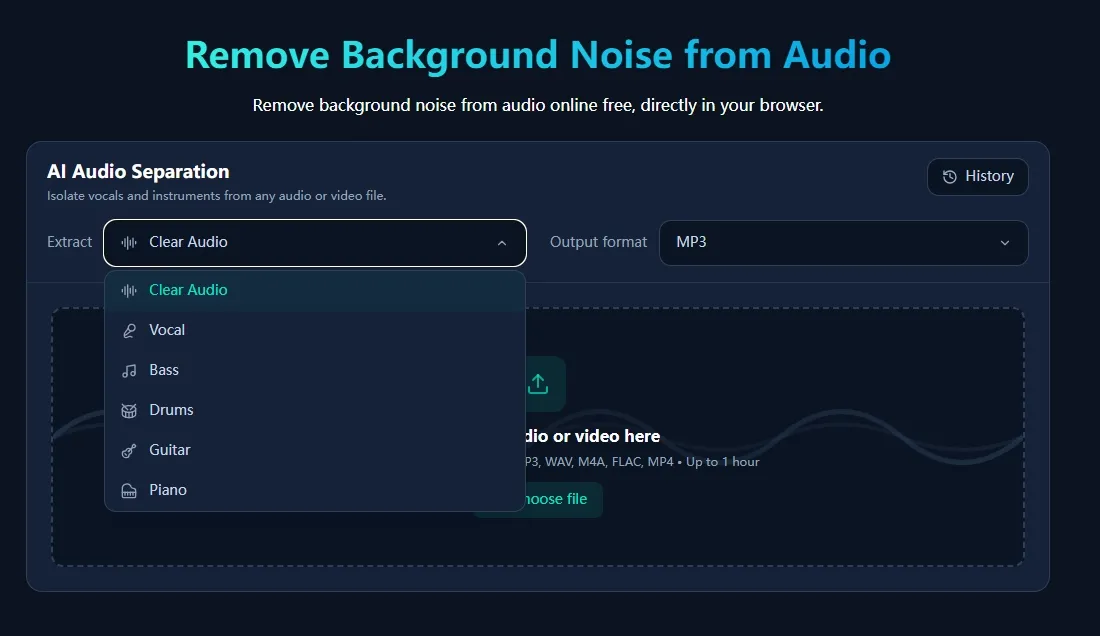
Step 2: Upload to DeVoice Voice Isolator
Open DeVoice Voice Isolator in your browser and select Choose File, or drag and drop your audio file onto the upload area. The tool supports MP3, WAV, and FLAC files up to 5 minutes and 10 MB per track.
Step 3: Wait for AI processing
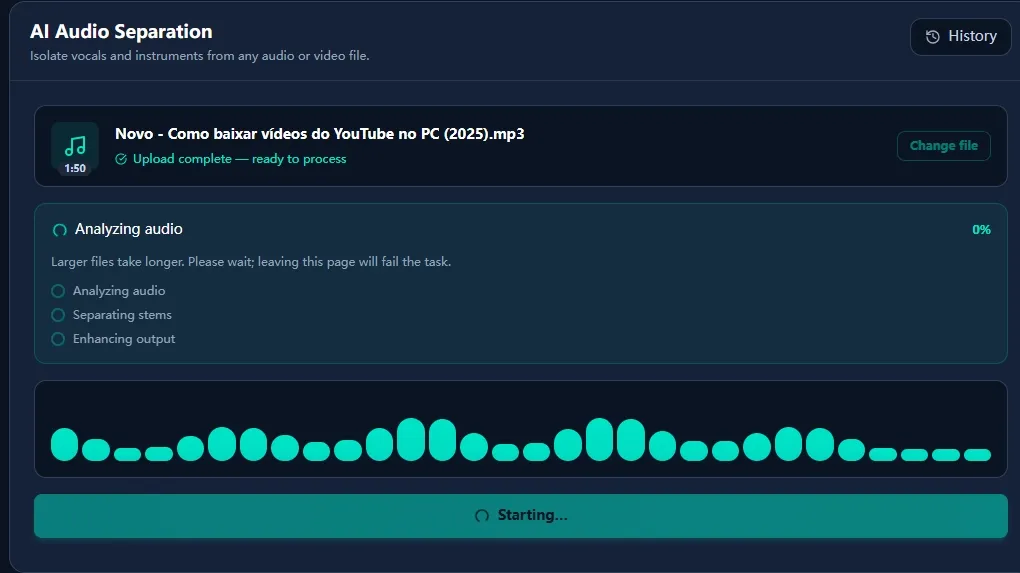
Processing starts automatically after you select a file. A progress bar shows the separation status, and a typical three-to-four-minute song takes about 10-30 seconds. The AI analyzes the full frequency content of the mix, classifies each component as vocal or instrumental, and re-synthesizes both stems separately.
Step 4: Download the vocal or instrumental
When processing finishes, you will see three audio tracks: Origin for the original mix, Vocal for the isolated lead voice, and Instrumental for the karaoke backing track. Each track has controls for previewing and downloading it. Download the Instrumental track for karaoke, or the Vocal track if you need an acapella for a remix.
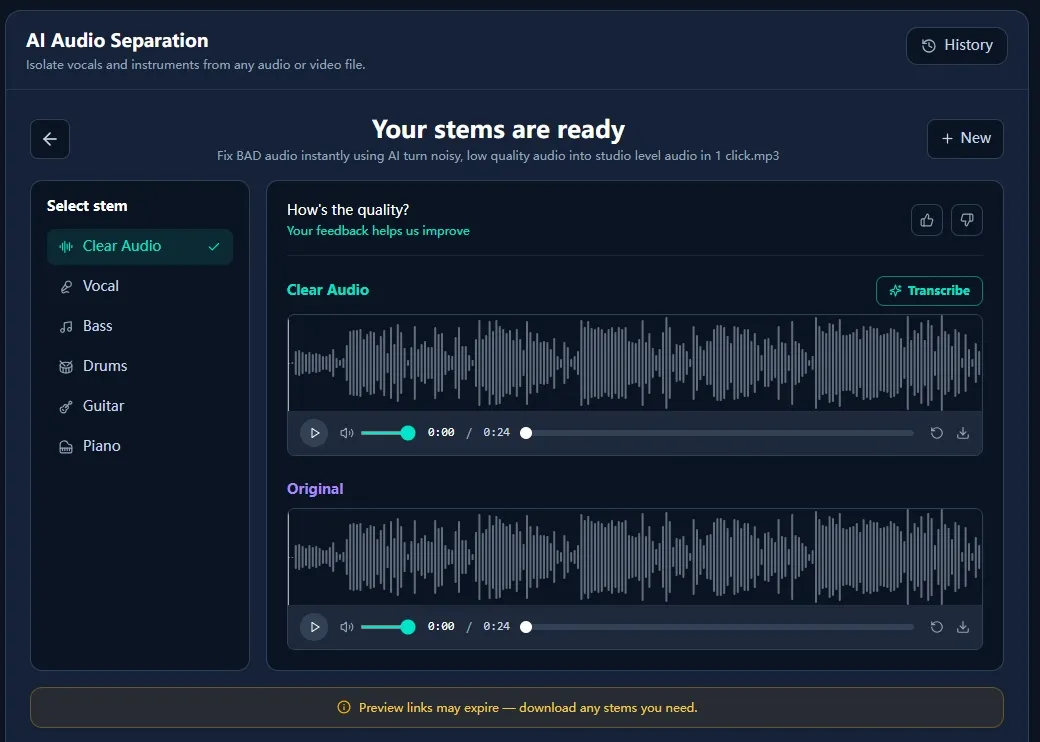
Downloaded files are stored temporarily and discarded when you leave the page, so save anything you need before closing the tab.
Method 2: Download and Use a Local Separator (Best Quality)
Best for: producers, maximum quality, batch processing, or privacy because nothing leaves your computer.
Step 1: Download the audio you have rights to use
If it is your own video, download the audio directly from YouTube Studio. For other content you have permission to use, obtain the highest-quality audio available. YouTube's Terms of Service restrict downloading content unless the service permits it or you have permission.
Step 2: Install Ultimate Vocal Remover
Ultimate Vocal Remover (UVR) is free, open-source, and frequently recommended in producer communities. Download it from its official GitHub repository, install it, and launch it. On the first run, download a model such as htdemucs, the standard four-stem model, or htdemucs_6s for six-stem separation.
Step 3: Load the audio and choose a model
Drag your audio file into UVR. Select a Demucs model: htdemucs works for most cases, while MDX-Net models may work better for certain genres. Choose WAV as the output format when you want a lossless file.
Step 4: Process and check the stems
Select Start Processing. UVR outputs separate files for vocals, drums, bass, other instruments, and a combined instrumental. Check a chorus section of the instrumental. If there is too much vocal bleed, try a different model or increase the window size setting.
Method 3: Audacity (Free, Basic)
Best for: quick, rough reductions when you already have Audacity installed and do not need studio-quality results.
Step 1: Download and open the audio in Audacity
Import the audio with File > Import > Audio. Audacity supports MP3, WAV, M4A, and most common formats.
Step 2: Use the built-in Vocal Remover effect
Open Effect > Vocal Reduction and Isolation, then choose Remove Vocals. This uses phase cancellation and works best on songs where the vocal is centered in the stereo mix.
Step 3: Try the AI plugin, if available
Audacity also offers AI separation through the OpenVINO plugin. When installed, it can produce much better results than phase cancellation by splitting the track into vocal and instrumental stems with a neural model.
Step 4: Export
Use File > Export and choose MP3 or WAV. The built-in phase-cancellation method can leave a hollow sound on many tracks, so treat it as a quick fix rather than a production tool.
7 Vocal Remover Compared
| Tool | Type | Free tier | Paid floor | Stems | YouTube link? | Best for |
|---|---|---|---|---|---|---|
| DeVoice Vocal Remover | Web | Yes | Free to start | 2+ | Yes | Quick browser use and batch files |
| Ultimate Vocal Remover (UVR) | Desktop | Free forever | Free | 4-6 | No, file only | Best quality, producers, and privacy |
| LALAL.AI | Web | 10 min free | About $15/month | 4-6 | Some plans | Clean multi-stem separation without installation |
| BandLab Splitter | Web | Unlimited free | Free | 4 | No | Casual use at no cost |
| Fadr | Web | Generous free tier | $50/year | Up to 16 | No | Producers and creative stem splitting |
| Audacity | Desktop | Free forever | Free | 2 with phase cancellation or AI plugin | No | Quick rough cuts when it is already installed |
| Demucs (CLI) | Command line | Free forever | Free | 4-6 | No | Technical users, batch processing, and GPUs |
Pricing and features are based on information available in mid-2026. Check each tool's current pricing page before committing.
Quality Expectations and Troubleshooting
What to expect
| Source quality | Typical result | Artifacts |
|---|---|---|
| Studio WAV/FLAC with a dry vocal | 95%+ clean instrumental | Minimal, usually limited to reverb tails |
| 320 kbps MP3 with a normal mix | 90-95% clean | Faint traces in harmonies |
| YouTube 128 kbps AAC | 85-92% clean | More bleed and some warbling |
| Heavy reverb and layered harmonies | 75-85% clean | Audible vocal ghosts throughout |
Common problems and fixes
- Faint vocals are still audible: this is normal for reverb-heavy tracks. Try a stronger model such as
htdemucs_6sin UVR, or accept minor bleed. No tool is 100% perfect. - The result sounds warbly or metallic: aggressive separation on a compressed source is often the cause. Background noise and room tone can make it worse. Try the background noise remover, use a higher-quality source, or reduce the separation strength.
- The instrumental sounds thin: vocal removal can reduce mid-range energy. A light EQ boost around 100-300 Hz usually restores some body.
- Bass or drums are missing: the model may have misclassified some frequencies. Try another model, such as MDX-Net instead of Demucs.
- Backing vocals remain: layered harmonies are often classified as other instruments and remain in the instrumental. This is a known limitation of current separation models.
What the Community Says
Before choosing a tool, it helps to understand what users and producers report in music production communities.
Reddit, r/musicproduction - general consensus: "UVR is the go-to for quality. If you can install it and have a halfway decent GPU, nothing free comes close. The Demucs models are genuinely impressive."
Reddit, r/WeAreTheMusicMakers - common complaint: "Online tools are convenient, but compressed sources can produce a warbly high end. They are fine for a quick demo, while local tools can offer more control for release work."
Audio production forums - another view: "For karaoke at home, a free online tool often does the job. Studio quality is not necessary when the goal is simply to sing along."
Cross-community consensus: no tool removes vocals 100%. Heavy reverb, harmonies, and compressed audio always leave traces. Expect a usable instrumental, not a studio master.
Copyright and YouTube ToS: The Lines You Shouldn't Cross
This is the section many guides skip, but it matters. Two separate sets of rules apply.
1. YouTube's Terms of Service
YouTube's Terms of Service restrict downloading content unless YouTube permits it, you have permission from the service and relevant rights holders, or applicable law allows it. For commercial use, license the audio through official channels rather than extracting it from YouTube.
2. Copyright law
Even after you remove the vocals, the instrumental is still a derivative work of copyrighted material. The melody, arrangement, and underlying composition remain protected. In practical terms:
- Personal practice and private karaoke: generally lower risk in practice, but local law still applies.
- Publishing a karaoke version online: usually requires permission or the appropriate licenses from rights holders.
- Remixes and mashups: generally need permission unless an exception such as fair use applies; that is a narrow, case-by-case legal question.
- Monetizing on YouTube or streaming services: Content ID may identify the instrumental as matching the original composition.
- Your own original music: you can process it because you own the relevant rights.
Rule of thumb: making a karaoke track for your own private use is very different from releasing it publicly or making money from it. Check the licenses first, and seek legal advice when the rights are unclear.
Bonus: If You Want the Words, Not the Music
Removing vocals is the right move when the music is what you want. But if you found a talk, interview, or lecture and need the spoken content, you do not need to remove vocals at all. You need a transcript.
For recordings with room tone, keyboard noise, or other distractions, cleaning the audio with an AI background noise remover can improve both transcription accuracy and the listening experience.
DeVoice YouTube to Text takes a link and returns a timestamped transcript with speaker labels in under a minute. From there, you can:
- Export TXT for quick notes.
- Export SRT or VTT for captions.
- Export DOCX for editing before publishing.
- Generate a summary, translation, or searchable archive.
For spoken content, the transcript is the source of truth, and it is often faster and more useful than stripping vocals. Try YouTube to Text for free on your next video.
Frequently Asked Questions
Can you completely remove vocals from a YouTube video?
No tool removes vocals 100%. AI stem separation gets 90-95% of the voice on clean studio mixes, but heavily reverberated vocals, harmonies, and compressed YouTube audio leave faint traces. Expect a usable instrumental with minor artifacts, not studio-perfect isolation.
Is it legal to remove vocals from a YouTube video?
For personal practice and private karaoke use, it is generally low-risk. However, the instrumental is still a derivative work of copyrighted material. Publishing, remixing, or monetizing it without the rights holder's permission may infringe copyright. YouTube's Terms of Service also prohibit downloading content unless the service permits it or you have permission.
What is the best free vocal remover for YouTube videos?
For quality and control, Ultimate Vocal Remover (UVR) is a widely recommended free option. It is open-source, runs locally, and supports Demucs models. For browser use with no installation, BandLab Splitter and DeVoice both offer free options.
Do I need to download the YouTube video first?
Not always. Some online tools accept a YouTube link directly and process the audio on their servers. For local tools like UVR or Audacity, you need an audio file that you own or have permission to download and process.
Why does my instrumental still have faint vocals?
Three common causes are heavy reverb or delay spreading the vocal across the frequency spectrum, layered harmonies being classified as other instruments, and compressed YouTube audio losing details that separation models rely on. A higher-quality source and a stronger model can help.
Can I also get a transcript of the YouTube video?
Yes. If you want the spoken content rather than the music, use DeVoice YouTube to Text. Paste the link to get a timestamped transcript with speaker labels, then export it as TXT, SRT, VTT, or DOCX.
What format should I export the instrumental in?
Use WAV or FLAC if you plan to edit further. Use MP3 at 256-320 kbps for sharing and karaoke practice. Avoid 128 kbps MP3 because its compression artifacts can compound separation artifacts.
Will removing vocals damage the original YouTube video?
No. Vocal separation creates a new file, so the original YouTube video and your downloaded source remain untouched. Keep the source file as your master because you cannot perfectly reconstruct the original mix from separated stems.